
Search Tips
Here you’ll find tips and tricks to help you improve your searches in the Primo library portal.
We also offer a wide range of courses to support you – for example, on the basics of literature searches or the use of artificial intelligence in the research process. Feel free to contact us directly.
Formulating search queries
In the simple search, you can search by author, title, publisher, year of publication, call number, notation, ISBN, etc. Primo also searches abstracts and full texts, if available.
Multiple search terms are automatically combined with AND. An AND operator means that all terms (and numbers, if applicable) must appear in the description text, abstract, title, or in the retrieved document.
- Example: bergson materie 1908

Using Boolean or Logical Operators, two or more search terms can be related to each other. Operators that can be used are AND, OR, and NOT (in capital letters), or UND, ODER, and NICHT. If no operator is specified, an AND operator is performed.
- Example: populism OR populismus

The OR/ODER operator increases the number of hits. Titles containing either one or the other term, or both, are found.
- Example: ernest hemingway NOT man sea

The NOT/NICHT operator excludes search terms from the search. In this example, the search terms Ernest and Hemingway are searched for, but not man and sea. Primo therefore interprets the search query as follows: (ernest AND hemingway) NOT (man AND sea). The search engine automatically inserts parentheses for two terms without an operator.

Wildcards can be used to include different spellings or word endings in the search.
The question mark (?) represents exactly one letter or character (example: wom?n).
The asterisk (*) can represent multiple letters or characters (example: ch*ter stands for charter, character, chapter, among others).
- Example: Slave* → Slave, slaves, slavery, etc.


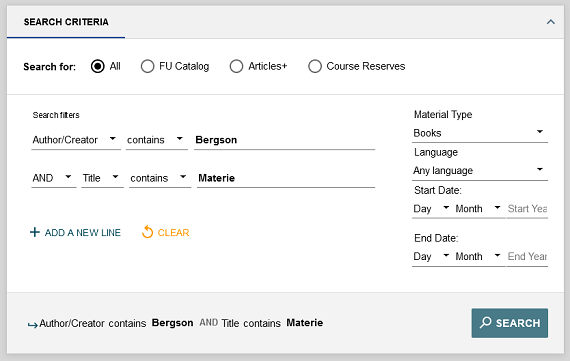
Compared to the simple search, the advanced search offers more options for more precise search. Predefined search fields allow you to search specifically for author, title, or ISBN, etc. The search fields can be linked using logical operators. You can also select the search scope: FU Catalog, Articles+ or Course Reserves.
- Example: Author: Bergson - AND - Title: Materie - Material Type: Books
- contains
default selection - contains (exact)
Corresponds to a phrase search phrase search
EXAMPLE for title: "to be or not to be"
EXAMPLE for author: "Thomas Mann"
Results that do not only contain this phrase, are also displayed. - begins with
The "begins with" function is only available for searches in "title" or "call number". It can be used to find very short journal titles more quickly, for example.
EXAMPLE: Spiegel [+ filter "material type": journal] - is (exact)
Select this setting in the title, author, or subject fields for a search in exact word sequence = phrase search. In contrast to "contains exactly," results that only contain the phrase are found. - Filters
The filters for material type, language and year of publication can be set on the right side of the search form.
Improve search results
Filter options are displayed that match your search query. Select formal filters such as publication type (e.g. books, articles), creation date, library, language, or content-related filters such as subject (keywords) or classification (subject area).
Filters can be selected or excluded and combined with each other by clicking on or using the checkboxes.
 Improve results using filters (Video | 2:25)
The quality and quantity of the results depend on the search query and the search scope.
If there are too many results, you should add more search terms to the search or use more specific search terms.
If you get too few results, you should formulate your search query more generally, use wildcards, or search for different terms using an OR operator (see: Formulation search queries). The number of results may increase if you search in English or additional languages.
No results found?
What can you do?
- Check your search terms for typing errors or use alternative spellings. If necessary, correct your query or use the Boolean operator OR (foto OR photo, color OR colour).
- Search with fewer terms.
- Search with more general terms.
- Remove special characters such as hyphens, apostrophes, parentheses, asterisks, and slashes, or use the Boolean operator OR (co-exist OR coexist).
- Use wildcards (e.g. slave* → slave, slaves, slavery, slavery or wom?n → women, woman).
- Expand your search to the "All" search scope (FU Catalog and Articles+).
- Expand your search by activating the switch under "Tweak your results" for "Display resources without direct access."
- Search in specialised databases. These are accessible through Database Information System (DBIS).
- Use the field "Identifier" in the Advanced Search to search for ISBN or ISSN.
- Search in other libraries in the region, or nationwide in the KOBV interlibrary loan index, by clicking the links "Search in libraries in the region" or "Search in libraries in Germany (interlibrary loan)" at the bottom of the search page.
- Make a purchase suggestion.
Get help: auskunft@ub.fu-berlin.de
Select search scope
You can decide whether you want to limit your search to the FU Catalog or Articles+, or search for Course Reserves. The selection will be displayed after clicking the magnifying glass icon or after the initial search.

In the FU Catalog you will find:
- Printed books available at the locations of the University Library and the Charité
- E-Books licensed by the University Library
- Printed journals and newspapers available at the locations of the University Library and the Charité
- E-Journals licensed by the University Library and free e-journals
- Audiovisual media
- Free and licensed databases (see: Databases)
Here you will NOT find:
- Book chapters*
- Journal articles*
- Newspaper articles*
- Database content*
- E-books and e-journals licensed by the Charité
- Free e-books*
- Websites*
*These media can be found in the search scopes Articles+ and All.
In Articles+ you will find:
- Journal articles
- Newspaper articles
- Free e-books
- Partially licensed e-books
- Book chapters
- Reviews
- Websites and more
Here you will NOT find:
- Printed books*
- Printed magazines and newspapers*
- Databases*
*These media can be found in the search scopes FU Catalog and All.
Notes on the Articles+ search scope
When searching in Articles+, only results with full-text access (licensed or open access) are displayed. Access to licensed e-resources is available to FU members or users of the University Library.
♥ TIP: If you activate the switch for "Display resources without direct access" more resources will be displayed. This may include data from sources where full-text access is not available or only partially available. In some cases, printed copies may be available at the locations of the University Library, or the item may be available for interlibrary loan from other libraries.
♥ TIP: The relevance ranking for Articles+ can be customized.
In the Course Reserves search scope, you will find:
-
Books or e-books from the FU Catalog for individual courses
You will NOT find:
-
Articles that may be relevant to the course
Details:
- Course Reserves are compiled by instructors. Instructions for creating semester lists can be found here.
- In the Primo search, you can search by instructor, name, and course number.
- The printed copy may not be available for loan during the semester, or may only be available for a limited loan period.